

Bunny here. Putting on my glasses, getting out my pocket protector, and getting my magic fingers and thumbs ready to type those zeroes and ones. Basically…it’s Nerdy Time!!
For whatever various reasons, our game likes to frak with our minds and heads and nothing seems to quite go right. We panic. Throw our device. Scream. Yell. There may be many tears as well. Just slowly take your thumbs/fingers off the device or you may crack the screen. Lol. It’s ok. I am here to help. All of us are. Promise.

In this post, I will be going over the basics of using the New Movement Menu EA put into our games a lil bit back. Help you find and locate items easier and make sense of it all. So sit back as we dive on in.
There are a lot of cool new changes to the Menus now and it can be kind of overwhelming to try and find information. To help, I am going to break down each icon section to make a bit more sense of where everything is tucked away now and how you can find it.
In your game in the lower right corner is the Directional Arrows Icon (Movement Menu).

If you tap on that you will be brought into what is know as the Movement Screen. From here you can move around anything in your town. Buildings, Characters (put them in storage), Decorations, Roads, Pavement, and Water.

In the upper left corner is the Back Button. In case you got here by mistake and want to just go back to your town.

So let’s look into the Movement Screen a little bit more in details and see all the options you have while in there.
LEFT SIDE

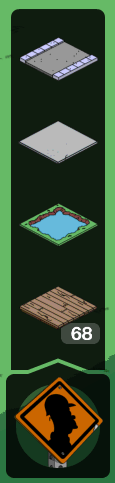
Just tap on one and it will take you to your town where you can place the item. It will also show you what directions you can drag it to and expand it. (If you want to know how to build a bridge, check out the post HERE.)


When tapping on the Boardwalk tile option, it will even tell you how many Boardwalk tiles you currently have in storage that you can place down. (151 being the MAX tiles allowed.)


RIGHT SIDE

This area is actually here to help you to see items around your town a bit more. Tapping on each item and “closing” the eye will make those objects “ghost like” so you can see through them to objects hidden behind and also not accidentally tap on them while trying to move something else.


S0 if you are worried about Righteousness Ratings, you can “hide” objects to see where you may have some room to tuck away out of site several Training Walls to help keep the 5 stars always. (You can see in the pic I hide Seasonal Items that drop bonuses as well as walls that fit nicely unnoticed behind taller buildings.)
CENTER
The center is the area you will probably use the most. It is where you can tap on any object to see just how big of an area grid it sits on, see if you can sell it, see if you can store it, X it out if you tapped on it by mistake…and the main thing…just move it from one spot to another. If you see red as you are moving an object around, that means you can’t place it there. Either there is not enough space or there is another object in the way.

Following are the Standard Icons you will see when tapping on an object in the Movement Screen. Just how many Icon options you will have, will depend on the object itself.


So that about breaks down the Movement Menu and the Categories inside of it. Keep an eye out for my other Menu posts.
As always, we are here to help in anyway we can. (I even try to harass…errr…I mean contact EA on our readers behalf to see if there is anything more I can find out too.) Just keep hanging in there. Changes happen. We will all get used to it eventually. 😉
***Bunny****